
September 11, 2025
Photo Editing
How to remove background of picture in photoshop?
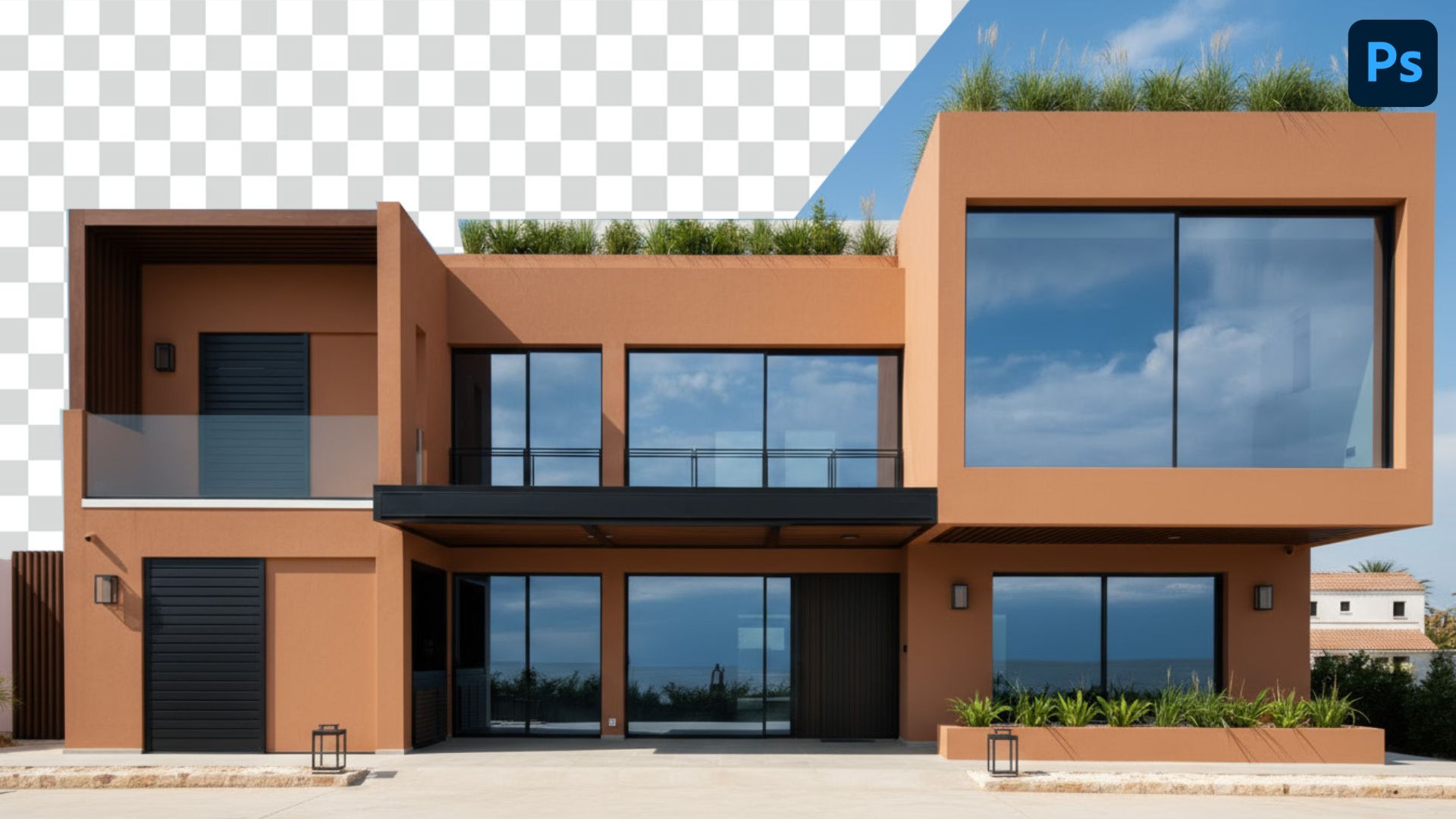
How to remove background of picture in Photoshop? Enhancing real estate photos is crucial before posting, as it helps ensure your listing doesn’t get overlooked. In some cases, the background in your photo is not as desired, and you want to remove or replace it. Learn the tools and simple steps to remove the background of a picture in this article.
1. When to Remove Background in Real Estate Photos?
In real estate marketing, images play an extremely important role because they are the first element that attracts the attention of potential customers. A high-quality photo not only helps the house stand out more on the selling platforms but also enhances the reputation of the broker.
However, the original photo is not always perfect. In some cases, the background can make your image less professional, so you need to delete or replace it.
When to remove the background in real estate photos:
- Distracting background: the appearance of electric wires, vehicles, passersby, or messy objects reduces professionalism.
- Bad weather or sky: gray sky, rain, and wind make real estate less attractive.
- Interiors affected by unnecessary details: dirty walls, reflective windows, glaring light bulbs.
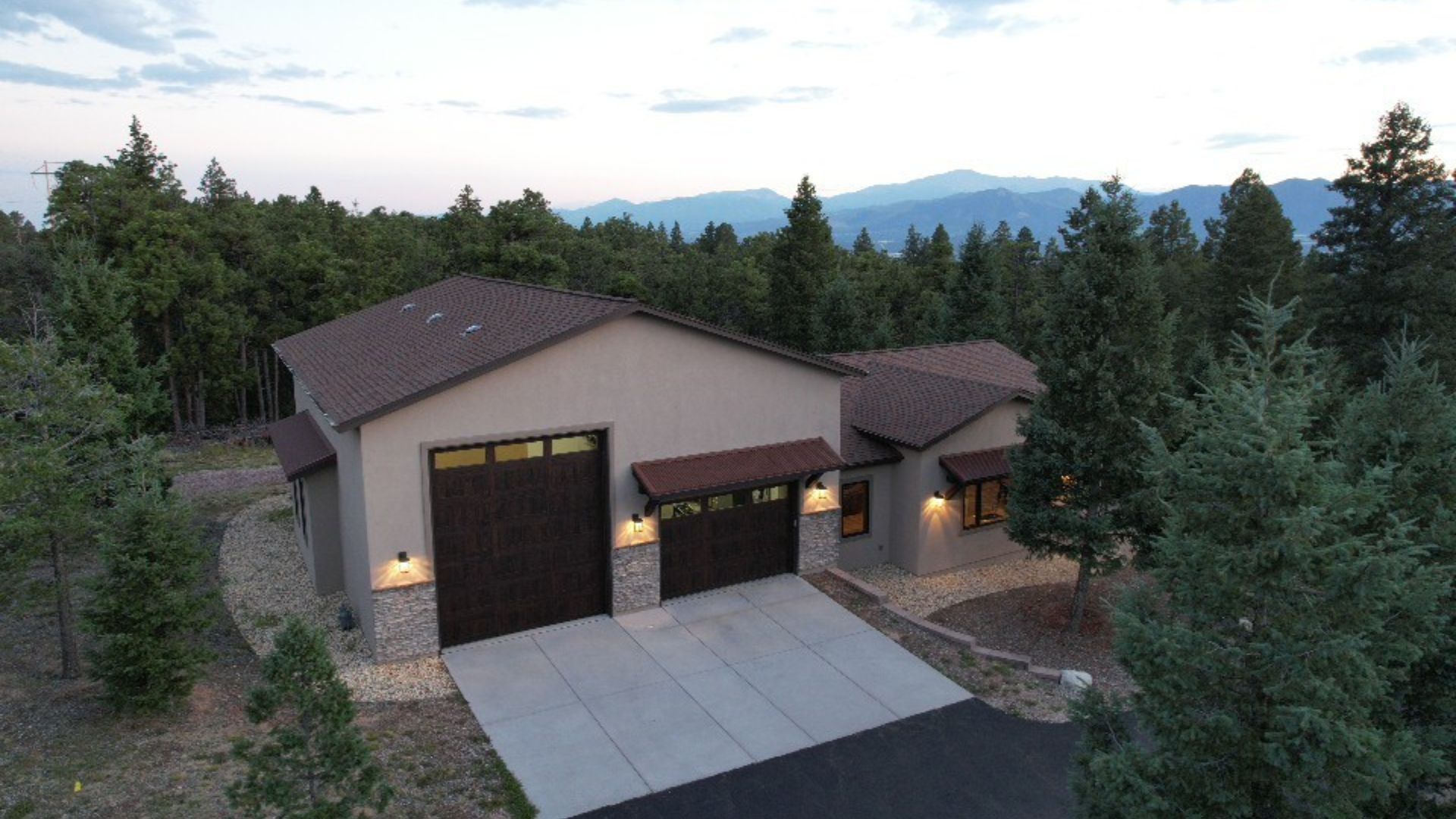
Removing the background in real estate photos can help you highlight your subject, create a clean, professional image, and increase the value of your property. This makes your home more attractive, increases the ability to attract buyers, and creates a competitive advantage for brokers.
2. Simple Guide: How to Remove Background of Picture in Photoshop
Removing backgrounds in Photoshop is crucial for creating professional and visually appealing images. Unlike other quick editing apps, Photoshop provides precision, flexibility, and advanced tools that help you achieve clean and natural-looking results.
Here’s a simple step-by-step guide to remove background of picture in photoshop get professional results:
Step 1: Open Your Image in Photoshop
Launch Photoshop, open your photo, and duplicate the layer. This keeps the original safe in case you need to go back.
Step 2: Choose the Right Tool
- For simple backgrounds → use Quick Action or Magic Wand Tool.
- For more detailed images → try Quick Selection Tool or Pen Tool.
- For complex edges like hair, trees, or curtains → use Select and Mask.
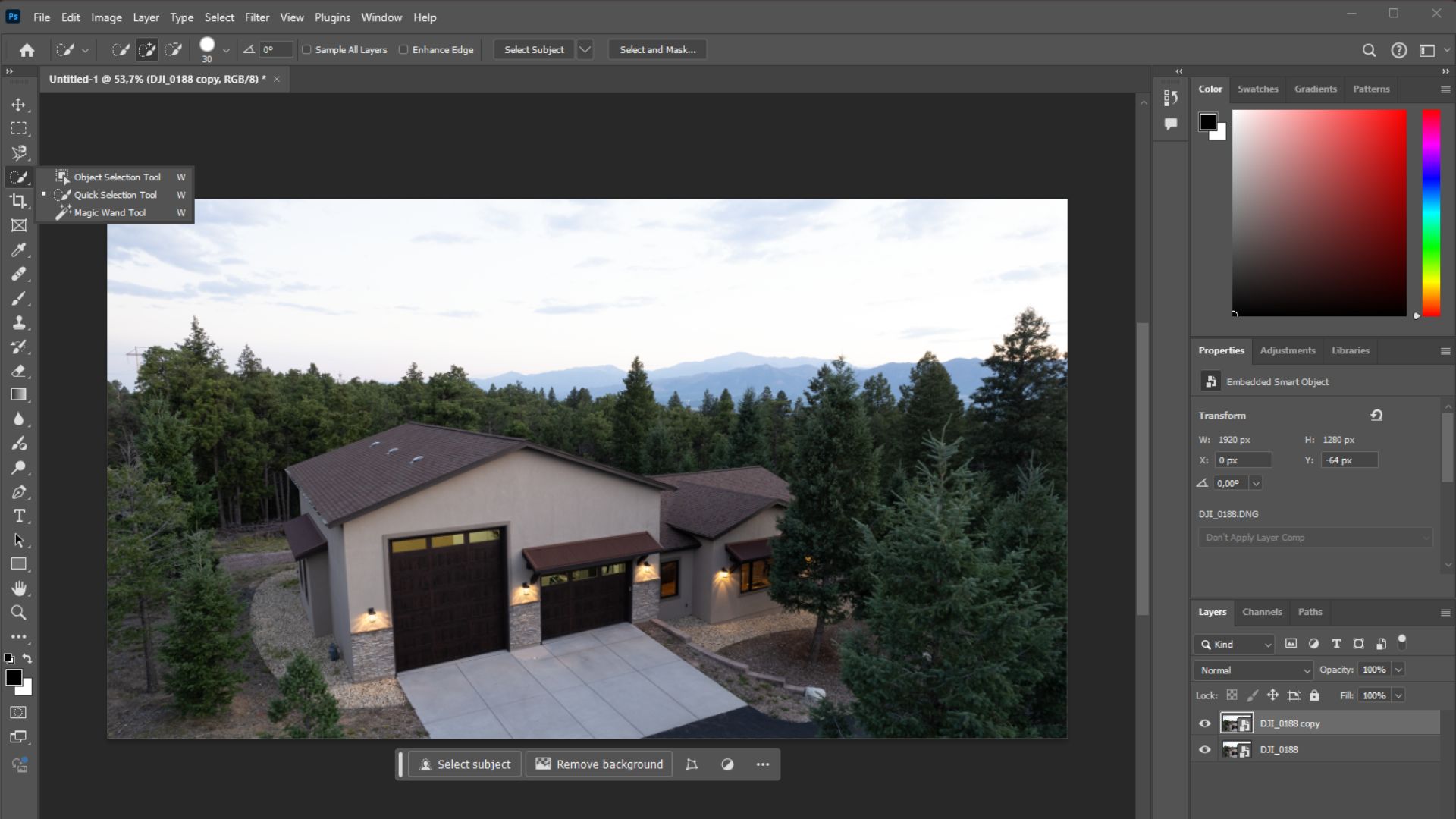
Step 3: Remove the Background
After making your selection, press Delete to remove the background or apply a Layer Mask so you can make non-destructive edits.
Step 4: Refine the Edges
Go to Select > Modify > Feather to soften the selection edges.
Use Refine Edge / Select and Mask to handle small, tricky details for a natural look.
Step 5: Save Your Image
- Save as PNG to keep a transparent background.
- Save as JPG if you prefer a solid white or colored background.
By following these 5 simple steps, you can easily remove the background in Photoshop and create a clean, professional listing.
3. Tips for Professional Background Removal in Real Estate Photos
When working with property images, professional background removal in real estate photos requires more than just cutting out the background. To achieve clean, natural, and high-quality results that impress potential buyers, consider these practical tips:
- Use Layer Masks Instead of Deleting: Ensures non-destructive editing, so you can refine or restore parts of the image anytime.
- Combine Tools for Best Results: Start with Quick Selection for general areas, refine edges with Select and Mask, and use the Pen Tool for straight architectural lines.
- Pay Attention to Fine Details: Real estate photos often include complex elements such as trees, glass reflections, or interior décor. Carefully refine these areas to maintain realism and avoid harsh edges.
- Adjust Lighting and Colors After Removal: Once the background is removed, match the lighting and tones of the new background with the subject. This ensures a seamless and professional look.
While Photoshop gives you full control to remove backgrounds and enhance real estate photos, it also requires time, expertise, and careful attention to detail. For realtors, photographers, and agencies who want to focus on sales and client relationships instead of post-production, outsourcing to a professional real estate photo editing service is the most efficient solution.
Rotider Media is a specialist in real estate photo editing with years of experience working with clients worldwide. We know the unique needs of the real estate market and are dedicated to delivering images that are not only technically flawless but also emotionally engaging. Every photo we edit is designed to showcase the true value of your property, ensuring your listings attract attention, build trust, and generate more buyers.
If you want to improve your listings with professional real estate photo editing, start an order HERE and let us transform your raw photos into stunning visuals that sell!
FAQs:
1. What is the easiest way to remove background in Photoshop?
The easiest way is to use the Quick Action “Remove Background” in the Properties panel. With one click, Photoshop uses AI to detect the subject and erase the background. However, it works best with simple images.
2. Which tool in Photoshop gives the most precise background removal?
The Pen Tool is the most precise, especially for straight lines and architectural details in real estate photos. For complex edges like trees or hair, Select and Mask gives better results.
3. Can I keep the original photo while removing the background in Photoshop?
Yes. Instead of deleting, always use a Layer Mask. This way, your edits are non-destructive, and you can refine or restore the background anytime.
4. Why is background removal important in real estate photos?
Removing distracting or unattractive backgrounds makes property images look cleaner, more professional, and more appealing to buyers. It also allows for sky replacement or transparent backgrounds for marketing materials.
5. What file format should I save after removing the background?
Save in PNG format if you want a transparent background, or JPG if you need a solid background color
6. Should I do background removal myself or hire a professional service?
Outsourcing to a professional real estate photo editing service, such as Rotider Media, will help you save time and ensure consistent, high-quality results that enhance your listings.

Annie Doo
Professional Video Editor
Hi, I’m Annie Doo, a professional video editor specializing in real estate post-production. Through hands-on experience with real-world projects, I’ve developed a strong understanding of visual storytelling, pacing, color, sound, and the workflows behind polished real estate videos. Here, I share practical insights, editing techniques, and production knowledge drawn from my day-to-day work in video post-production.
Was this article helpful?
Your feedback helps us create more useful real estate media guides.
Share this article


No Spam, Just Updates
Our fresh blogs provide technical and industrial information that helps strengthen your business. Sign up to be the first to receive the new updates
Related Posts
Real Estate Post-Production: A Complete Guide for Photographers and Media Teams
Oct 2, 2026
AI in Real Estate: A New Leap for Property Professionals
Sep 9, 2026
AI for Real Estate Marketing: A Practical Guide for Agents and Agencies
Sep 9, 2026
AI for Real Estate Agents: Practical Uses and Future Trends
Sep 7, 2026
15 Real Estate AI Companies to Know in 2026
Sep 5, 2026