
September 12, 2025
Photo Editing
How To Remove Object In Photoshop For Real Estate Editing
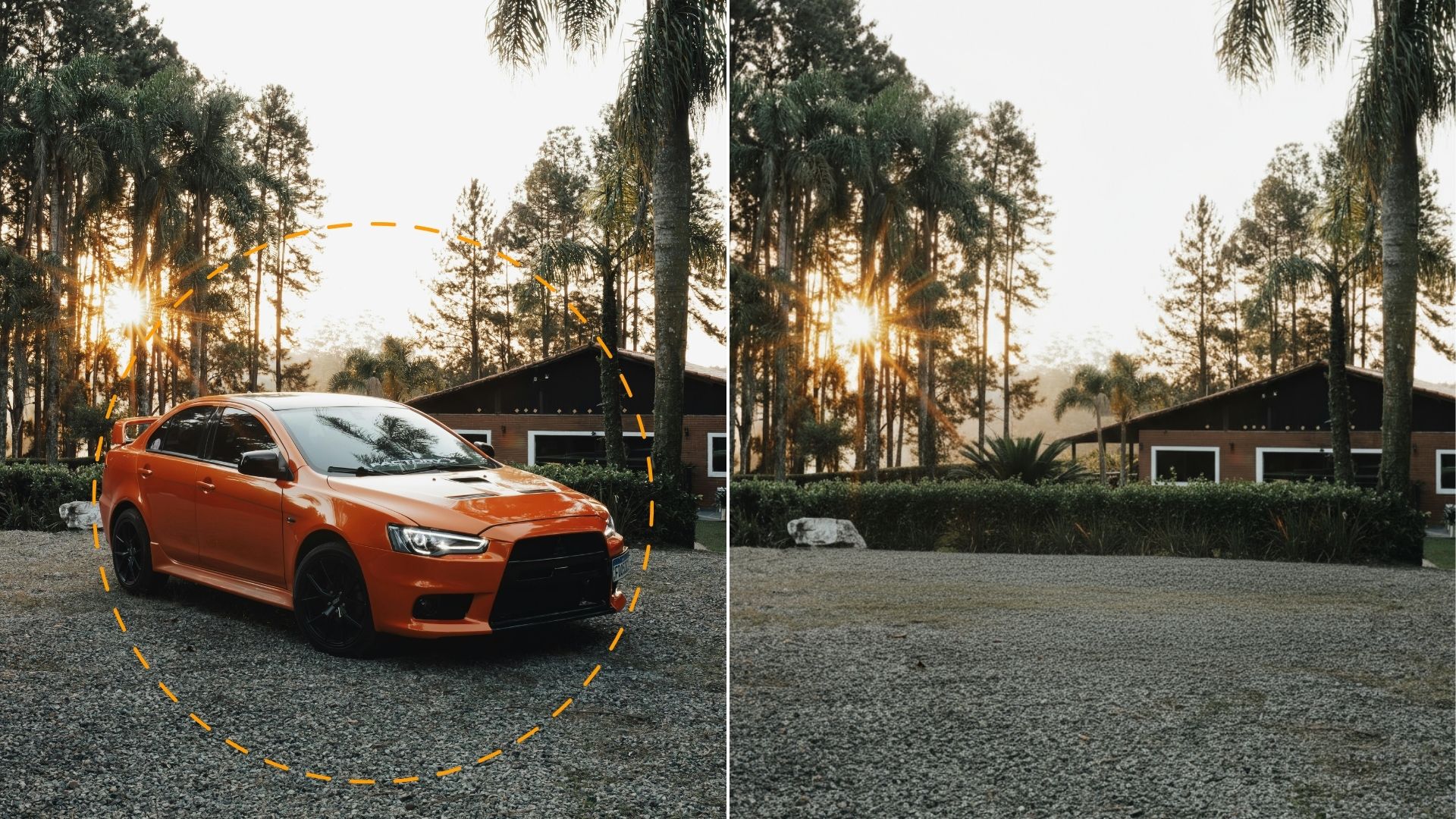
Remove Object In Photoshop For Real Estate Editing is one of the most essential skills for creating clean, professional real estate photos. In some cases, small distractions like wires, trash bins, cars, or personal items can reduce the visual appeal of a property and even influence a buyer’s decision.
By using Photoshop’s powerful tools, you can easily remove these unwanted objects and highlight the true beauty of the property. This guide will show you step by step how to edit real estate photos with precision—ensuring your listings stand out and attract more potential buyers.
1. Why Need to Remove Object in Real Estate Editing
According to the National Association of Realtors (NAR), over 95% of home buyers first look at property photos online, and listings with professional-quality images receive 118% more views compared to those with standard photos. This shows how crucial high-quality visuals are in real estate marketing.
Unwanted objects such as trash bins, cars, wires, or personal belongings can make a property photo look messy and unprofessional.
Removing objects in Photoshop for real estate editing not only makes a photo cleaner but also helps increase the sale potential.
Here are the benefits of removing unwanted subjects in real estate photos:
- Highlight the property’s design and space without distractions.
- Build trust by presenting a polished and professional image.
- Encourage buyers to focus on the home’s strengths.
- Increase the chances of generating interest, showings, and faster sales.
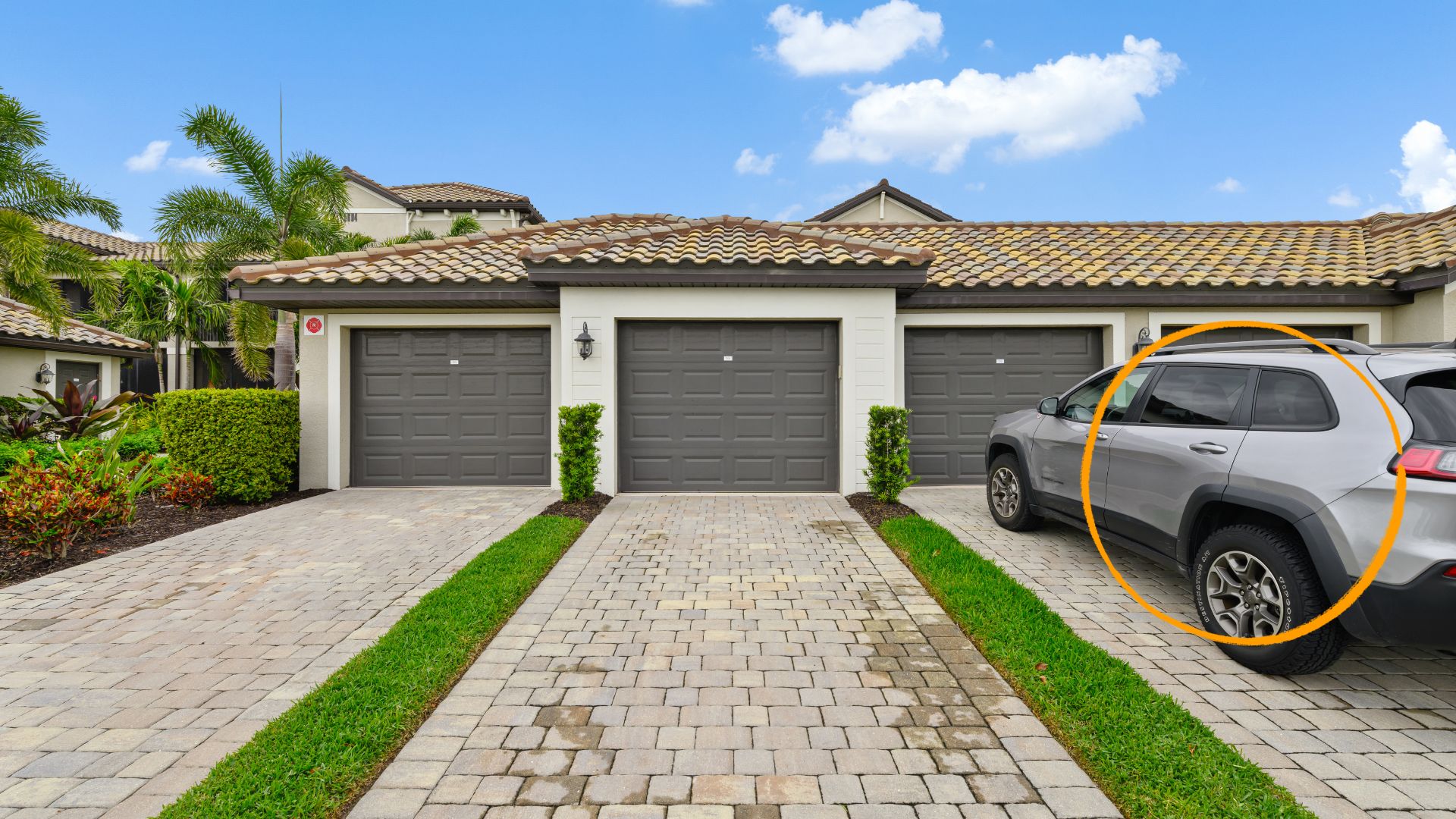
2. How to Remove Objects in Photoshop for Real Estate Editing
In real estate photography, even the smallest unwanted object can reduce the professionalism and appeal of a property listing. Removing unwanted objects ensures that buyers focus only on the home’s true features.
There are many tools available today to help remove unwanted objects in real estate photos, from online AI applications to professional photo editing software. However, Photoshop is still considered the most powerful and flexible tool. With a diverse set of editing tools, Photoshop not only allows you to remove unnecessary details such as wires, trash cans, cars, or personal belongings, but also helps to maintain the natural, harmonious look of the entire frame.
When editing real estate photos, removing unwanted objects is one of the most common tasks. Whether it’s a car parked in front of the house, messy wires, or small blemishes on the wall, Photoshop provides several tools to help you clean up images quickly and professionally. Below is a step-by-step guide using the most effective object removal tools in Photoshop.
Step 1: Duplicate layer
Before You Start, duplicate the Background layer by pressing Ctrl/Cmd + J to work on a copy (ensures that your original photo stays untouched while you make changes on a copy)
Step 2: Tools to remove objects in Photoshop
Use the following tools to remove objects in Photoshop:
2.1. Content-Aware Fill
- Select the object using the Lasso Tool (L).
- Go to Edit > Content-Aware Fill.
- In the preview window, Photoshop automatically samples surrounding areas. Adjust the sampling area if needed.
- Choose Output to: New Layer for non-destructive editing, then click OK.
- Refine edges with the Healing Brush if necessary.
2.2. Clone Stamp Tool
- Create a new layer and select the Clone Stamp Tool (S).
- Hold Alt/Option + Click to define a clean source area.
- Paint gently over the unwanted object to cover it with the sampled pixels.
- Change sampling points frequently to avoid repeating patterns.
- Adjust brush size and opacity for smoother blending.
2.3. Healing Brush & Spot Healing Brush
Spot Healing Brush Tool:
- Select the tool (J) and set it to Content-Aware mode.
- Simply paint over the object, and Photoshop automatically blends it.
Healing Brush Tool:
- Hold Alt/Option + Click to select a clean area.
- Brush over the object for more precise control than the Spot Healing tool.
2.4. Patch Tool
- Select the Patch Tool (under Healing tools).
- Draw around the object you want to remove.
- Drag the selection to a clean area you want to use as a replacement.
- Photoshop blends the new area into the original image.
Step 3: Final Finish & Check
- Check shadows and reflections — if missing, recreate with Clone/Transform + low gaussian blur + reduced opacity.
- Zoom integrity at 25%, 100% to see both the overall and the details.
- Use Layer Mask to make non-destructive adjustments (hide/show edits).
- Apply gentle Curves/Levels if needed to balance the tone after editing.
- Save and export
3. Common Mistakes to Avoid When Removing Objects in Photoshop
Object removal can greatly improve real estate photos, but if done incorrectly, it may leave visible marks that reduce professionalism. To achieve natural results, watch out for these common mistakes:
- Editing directly on the original layer: This limits flexibility and makes it impossible to undo mistakes. Always duplicate the layer or work on a new layer for non-destructive editing.
- Repetitive or blurry textures: Using the Clone Stamp Tool or Content-Aware Fill without adjusting sampling areas can create obvious repeating patterns or blurry spots that look unnatural.
- Harsh edges around the edited area: If the brush hardness or selection feathering is not set properly, the retouched area may stand out. Always use soft edges and blend gradually.
- Ignoring light and shadows: Real estate photos often rely on natural light. Removing an object without considering its shadow can make the image appear unrealistic. Re-create or blend shadows when necessary.
- Over-editing: Trying to erase too many details or altering large portions of the image can make photos look fake. Keep edits subtle and focus only on distracting objects.
Finally, don’t forget to fine-tune the final result. Take a step back, view the image at both full screen and 100% zoom, and make sure every adjustment blends seamlessly. The goal is to achieve a clean, professional photo where no one can tell an edit was ever made.
By avoiding these mistakes, you can ensure that your object removal work looks seamless, professional, and trustworthy to potential buyers.
4. Professional Outsource Real Estate Photo Editing Service
While Photoshop gives you control to remove objects and perfect real estate photos, it also requires time, skill, and attention to detail. For realtors, photographers, and agencies managing large volumes of property images, outsourcing to a professional editing service is often the most efficient solution.
A dedicated real estate photo editing team can:
- Deliver fast turnaround for hundreds of photos.
- Ensure consistent quality across all listings.
- Apply advanced edits such as HDR blending, day-to-dusk conversions, sky replacement, object removal, and retouching.
- Save time so agents and photographers can focus on marketing and client relationships instead of post-production.
Rotider Media is a specialized real estate photo editing company with years of experience serving global clients. By outsourcing tasks like object removal, you can guarantee polished, clutter-free, and market-ready images that attract more buyers and help sell properties faster.
Start your professional real estate photo editing with Rotider Media HERE!

Annie Doo
Professional Video Editor
Hi, I’m Annie Doo, a professional video editor specializing in real estate post-production. Through hands-on experience with real-world projects, I’ve developed a strong understanding of visual storytelling, pacing, color, sound, and the workflows behind polished real estate videos. Here, I share practical insights, editing techniques, and production knowledge drawn from my day-to-day work in video post-production.
Was this article helpful?
Your feedback helps us create more useful real estate media guides.
Share this article


No Spam, Just Updates
Our fresh blogs provide technical and industrial information that helps strengthen your business. Sign up to be the first to receive the new updates
Related Posts

Real Estate Post-Production: A Complete Guide for Photographers and Media Teams
Oct 2, 2026
AI in Real Estate: A New Leap for Property Professionals
Sep 9, 2026
AI for Real Estate Marketing: A Practical Guide for Agents and Agencies
Sep 9, 2026
AI for Real Estate Agents: Practical Uses and Future Trends
Sep 7, 2026
15 Real Estate AI Companies to Know in 2026
Sep 5, 2026