
The right Iphone Duo camera settings depend on what you are shooting. Everyday photos, moving subjects and low-light videos need different choices—not simply the highest resolution available.
This guide explains a practical starting setup, when to change it and how to use Duo-specific camera features. Recommendations are based on Apple’s documentation and general shooting principles, rather than hands-on testing by Rotider.
Recommended iPhone Duo Camera Settings to Start With
For everyday use, start with 24MP photos, composition guides enabled and 4K video at 30 fps. Then adjust the setup for your subject, lighting and intended output.
|
Setting |
Suggested starting point |
When to change it |
|
Photo resolution |
24MP |
Choose 48MP for well-lit scenes where extra detail or cropping matters |
|
Capture format |
High Efficiency |
Choose Most Compatible when your receiving software requires it |
|
Grid and Level |
On |
Hide them if they distract you |
|
Camera selection |
1× Main |
Use Ultra Wide for additional coverage; assess zoom quality before recording |
|
Exposure |
Adjust to the scene |
Reduce brightness when important highlights are clipping |
|
Video |
4K at 30 fps |
Use 60 fps for smoother motion or planned slow motion |
|
HDR video |
Match your editing and delivery workflow |
Use SDR for a simpler workflow when HDR support is uncertain |
|
Preserve Settings |
Enable the options you regularly reuse |
Avoid preserving settings you frequently forget to reset |
These are recommended starting points, not factory defaults or a universal quality preset. Before an important shoot, record a short sample and check it in the app or editing software you will actually use.
Best iPhone Duo Camera Settings for Photos
.png)
Photo quality depends on focus, light and camera stability as well as resolution. Configure the basics first, then make small adjustments while looking at the actual scene.
Choose Between 24MP and 48MP
Use the 24MP resolution setting for everyday photography needs, balancing high detail with manageable file sizes. Opt for 48MP when capturing static subjects under good lighting conditions, particularly if you plan to crop the image significantly or produce large-format prints.
To adjust the default photo resolution, navigate to Settings → Camera → Formats → Photo Mode. To enable high-resolution shooting, toggle on Resolution Control, then select your preferred resolution directly within the Camera app interface.
Apple’s advanced camera settings guide details these options further. Actual output resolution can vary depending on the active lens and capture mode; verify your saved image files rather than assuming every shot captures at a full 48 megapixels.
Higher megapixel counts will not correct focus errors or eliminate motion blur. If your subject is moving or light is limited, prioritize achieving a sharp image over capturing the largest possible file size.
Select the Right Photo Format
In Settings → Camera → Formats, the "High Efficiency" option serves as a practical starting point if your devices and editing applications fully support the format. The "Most Compatible" option is useful when clients, websites, or legacy apps specifically require standard JPEG files.
Base your format selection on your complete end-to-end workflow. Take a test shot, transfer the file to an external device, and verify that it opens normally before committing to a high-volume shooting session.
In Apple's technical specifications, HEIF and JPEG are listed as the primary photo capture formats. Do not confuse 48MP high-resolution output with Apple ProRAW files; image resolution and file format are entirely separate concepts.
Enable Grid, Level and Lens Correction
Enable the Grid and Level tools under Settings → Camera. Use the grid to compose your frame effectively, while the level indicator provides a reference for camera alignment. Check the scene’s visible lines as well.
These visual aids are exceptionally useful when capturing architecture, interior spaces, horizons in exterior photographs, or subjects with straight edges. They serve as reliable reference guides, though you must still exercise creative judgment in positioning your camera properly.
Keep Lens Correction toggled on. According to Apple, this feature automatically adjusts photos taken with the Ultra Wide camera and front camera to make them appear more natural. It does not correct every effect of close camera placement or prevent stretching near the frame edges.
Avoid placing human faces or critical subjects near the extreme edges of the frame when shooting with the Ultra Wide lens. If an object appears stretched or distorted, step backward and switch to a tighter focal length.
Read more: Best Focal Length for Real Estate Photography
Adjust Focus and Exposure for the Scene
Tap your subject to set the focus point, then slide the exposure icon up or down if the image appears too bright or too dark. Apple’s camera tools guide notes that tapping and holding on the focus area activates AE/AF Lock (Auto-Exposure/Auto-Focus Lock).
For a static shot, AE/AF Lock can reduce automatic changes. Recheck focus and exposure if you change the framing or camera position. Unlock your settings whenever the subject moves to a different distance or as lighting conditions change.
Do not treat −0.7 EV—or any fixed exposure adjustment—as a universal quality setting. A bright sky may require reducing exposure to preserve highlights, while a shaded face demands entirely different handling. Always safeguard crucial bright areas without unnecessarily plunging your primary subject into deep shadow.
Choose Photographic Styles and Preserve Settings
Begin with a restrained Photographic Style if you aim to maintain a consistent, versatile aesthetic across everyday shots. Bold color enhancements or aggressive contrast presets should intentionally suit your specific subject rather than serve as an automatic default.
Utilize Settings → Camera → Preserve Settings to retain the specific controls you routinely reuse. Apple documentation highlights available options including Camera Mode, Photographic Style, Exposure Adjustment, and Resolution Control, with exact feature availability varying across different iPhone models.
Preserve your camera settings selectively. Retaining your preferred capture mode saves valuable setup time, but inadvertently carrying over yesterday’s exposure tweak can quickly ruin shots in a new lighting environment. Always double-check your active viewfinder controls prior to starting a new shoot.
Best iPhone Duo Camera Settings for Video
.png)
Choose your video settings around the intended result: normal-speed playback, slow motion, a talking-head clip or a moving sequence. Consistency between clips usually matters more than using the most demanding mode.
Choose Your Resolution and Frame Rate
Navigate to Settings → Camera → Record Video to select your available resolution and frame rate configurations. You can also toggle supported options directly within the camera interface while in Video mode.
For general everyday video needs, 4K at 30 frames per second (fps) serves as a reliable baseline. Select 60 fps when you want smoother motion handling or plan to apply slow-motion effects during editing. Opt for 24 fps if this cinematic cadence fits your specific project and post-production workflow.
Higher frame rates do not equate to superior quality in low-light environments. Higher frame rates limit the exposure time available per frame. In low light, a lower frame rate may allow a longer exposure, depending on the camera’s settings. Additional lighting can also help.
Apple’s video recording guide notes that higher resolutions and increased frame rates generate significantly larger file sizes. Always record a short test clip before committing to a long-form shooting session.
Decide Between HDR and SDR
HDR (high dynamic range) video can retain and display a wider tonal range in a compatible workflow. Choose it when your editing software and delivery platform handle it correctly. SDR (standard dynamic range) can simplify delivery when HDR support is uncertain.
You can adjust this configuration in Settings → Camera → Record Video → HDR Video. Apple details the operational specifics of this setting within its official video setup guides.
Determine your standard format before recording. Mixing HDR and SDR clips without appropriate color management can produce inconsistent brightness and color.
Test your complete end-to-end pipeline: from capture, ingest, editing, and rendering to final playback. A clip that displays beautifully on an iPhone screen does not guarantee an identical visual output once exported and viewed on third-party devices.
Read more: 18 Pro Tips to Enhance Your Real Estate Video Editing
Control Focus, Exposure and Camera Switching
Establish crisp focus on your subject prior to rolling video. For a stationary presenter or static object, locking focus and exposure helps maintain visual consistency throughout the shot. For moving subjects, allow the system to track action dynamically rather than locking focus at an unhelpful distance.
In Settings → Camera → Record Video, consider enabling Lock Camera to prevent unwanted mid-clip lens switching, and Lock White Balance to minimize jarring, unexpected color shifts. Apple documents both of these controls in its official guides.
Apply these locking options judiciously. A locked white balance is highly effective under steady, controlled lighting conditions, but it may produce an unwanted color cast when you move from daylight into a room lit with warm bulbs.
Choose Stabilization for Your Shot
Begin with standard Video mode for smooth, reliable handheld recording. Hold your device securely with both hands, keep your elbows anchored, move deliberately, and avoid abrupt direction changes.
Enhanced Stabilization applies a slight crop to your frame to smooth out unwanted camera motion. Compare your framing with this setting enabled and disabled, particularly when preserving maximum field of view is critical. Action mode supports up to 2.8K Dolby Vision at 60 fps, so it is not the choice when 4K capture is required.
For static framing, mount the device on a sturdy tripod or support setup. While stabilization tools effectively reduce camera shake, they cannot correct improper focus or eliminate motion blur caused by fast-moving subjects.
Check Audio and Available Storage
Record a short audio test and listen with headphones. Check for echo, wind, clothing noise and background sounds.
For voice recording, position the microphone close enough to capture clear speech while avoiding clothing noise and distortion. If you are using an external microphone, verify that your camera application is actively receiving the external audio signal.
Before initiating a lengthy recording session, check available storage space, battery levels, and your file transfer workflow. Transfer the original camera files without additional compression or transcoding whenever possible. Check that your transfer method preserves the originals.
Read more: Best Real Estate Video Editing Software for Experts
How to Use the iPhone Duo’s Camera Features
The folding design introduces useful ways to frame and capture images. These features solve specific problems; they do not replace careful lighting, composition or camera placement.
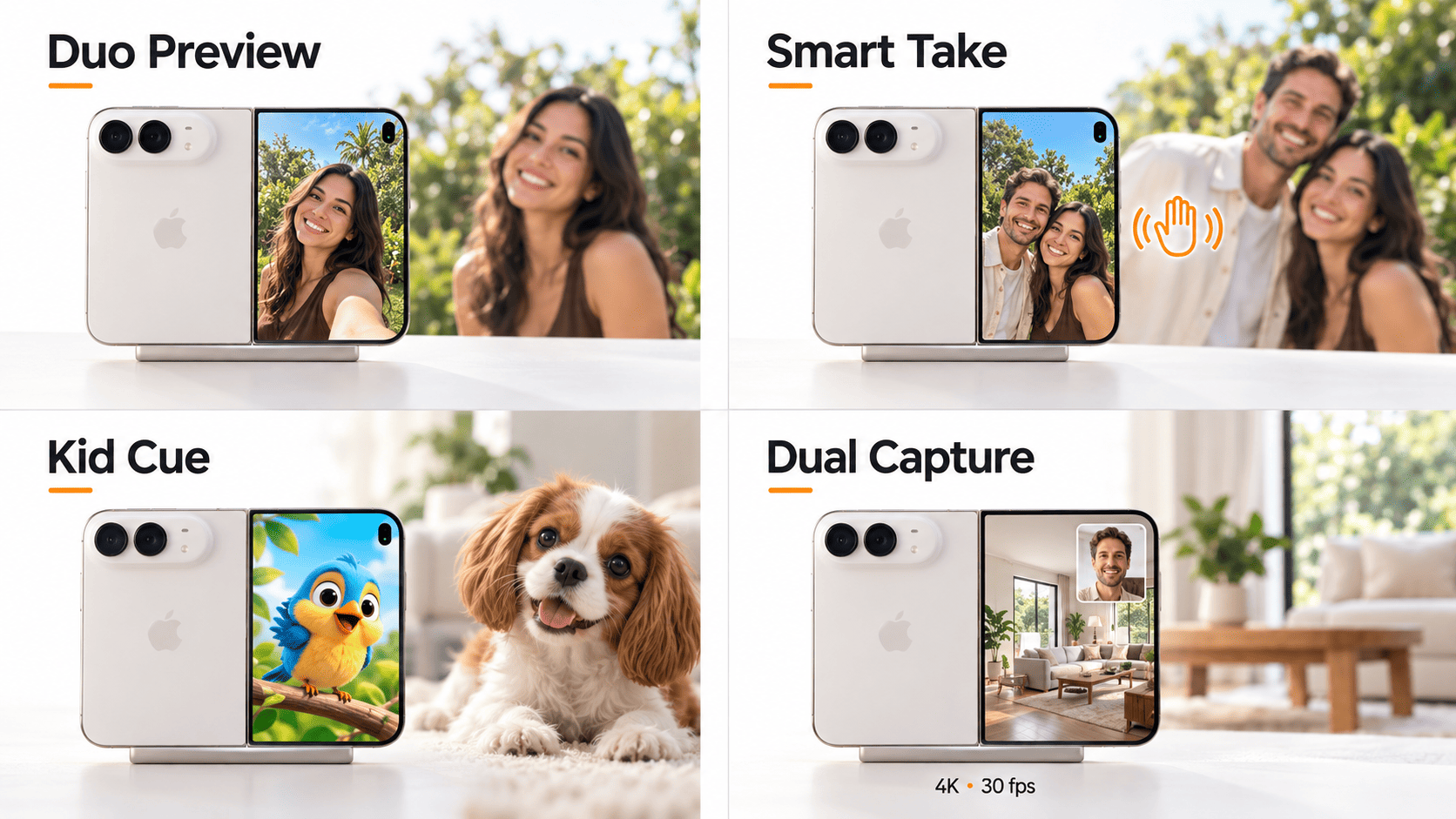
Use Duo Preview for Framing and Rear-Camera Selfies
Duo Preview shows a mirrored live camera preview on the outer display.
To activate it, open your Duo device and launch the Camera app. On the inner display, navigate to Outer Display Options → Duo Preview, then frame your subject accordingly. According to Apple’s Duo Preview instructions, the outer display shows the preview without camera controls.
When capturing self-portraits or self-framing with the rear cameras, use this preview to check headroom above the subject, eliminate distracting background elements, and refine overall composition. Once you are satisfied with the framing, tap the Shutter button to take the photo.
Take Hands-Free Photos with Smart Take
Smart Take automatically captures photographs when you pose or hold still, making it exceptionally useful when you want to join the group shot yourself.
Place the phone securely, open the Camera app, and look for the Smart Take button. If it is not immediately visible, open Camera Controls and select Smart Take. Activate it, step into the frame, and pause in your desired position. Apple provides step-by-step instructions in its official Smart Take guide.
Always check your composition before stepping away from the device. Ensure that a stable surface supports the phone safely without placing it near an edge where it could fall. Review your captured results before leaving the location.
Use Kid Cue When Photographing Children
Kid Cue displays an animated visual on the outer display screen designed to catch the attention of young children or pets and direct their gaze toward the camera lens.
With your Duo device unfolded and the Camera app open, tap Outer Display Options → Kid Cue. You retain full control over when to trigger a photograph or start recording video. Apple details the operation of this feature within its official Kid Cue instructions.
Treat this feature as a helpful attention-getting aid rather than a guaranteed fix for sharp focus. Ensure adequate ambient lighting and keep the subject comfortable to achieve the best results.
Understand Dual Capture and Its Limits
Dual Capture allows you to simultaneously record the scene ahead alongside your live reaction in real time. Within the Camera application, select Video → Camera Controls → Dual Capture, then begin recording.
Apple’s official recording documentation outlines the operation of this capability, while product specifications confirm the mode supports up to 4K resolution at 30 frames per second (fps).
Deploy this feature when both visual perspectives genuinely add value to your narrative—such as in walkthrough property tours, live demonstration videos, or travel commentary. If you require greater creative flexibility for individual frame composition and independent post-production editing, opt for capturing distinct, separate takes instead.
Adjust Your Settings for Different Shooting Conditions
Once your baseline is configured, change only what the situation requires. Keeping the rest consistent makes it easier to understand why a photograph or clip improved.
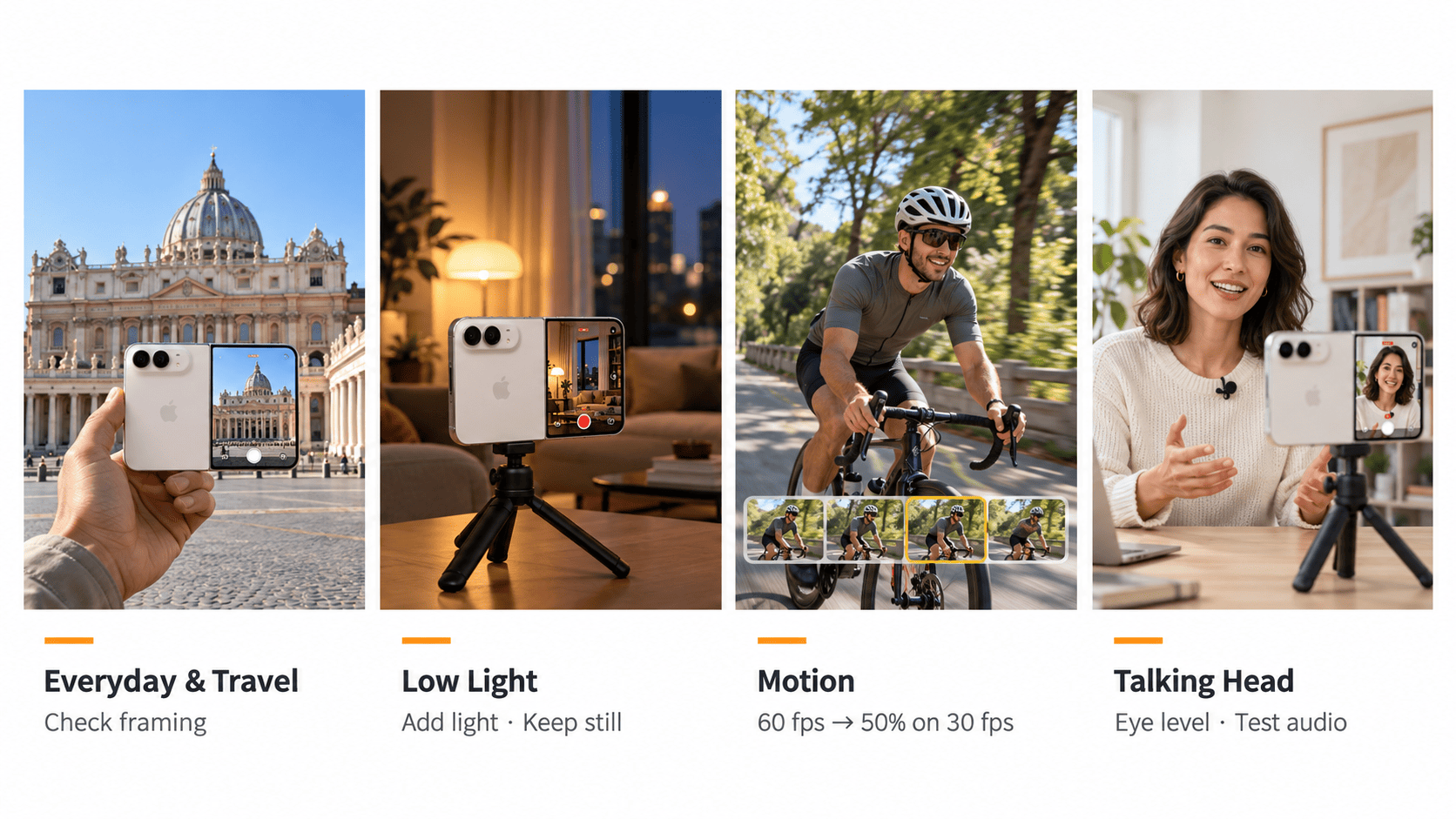
Everyday Photos and Travel
Select an appropriate resolution and keep your camera ready to adapt quickly as your subject or scene evolves. Start with the main camera lens as your default baseline, then adjust your field of view or focal length if the framing demands it.
Before capturing a landmark, architectural space, or group photo, inspect the outer edges of your viewfinder to ensure key elements are not awkwardly cropped out, and that no distracting signage or unwanted passersby enter the shot. When time allows, capture an alternative version using a slightly different composition or perspective.
For critical shots, zoom in to verify focus sharpness on-site before moving on to the next setup. Re-taking a shot immediately on location is vastly easier and more reliable than attempting to fix a flawed image later in post-production.
Low-Light Photos and Indoor Scenes
Add light or reposition your subject before increasing demands on the camera. A person near a window may photograph better than the same person under a dim ceiling fixture.
When Night mode is active, keep the phone still until capture finishes. Apple’s Night mode guidance emphasizes stability and provides movement indicators to help reduce camera shake.
Remember that stabilizing the phone does not stop a person from moving. For active subjects, better lighting may be more effective than a longer capture.
Moving Subjects and Slow-Motion Video
Decide in advance whether motion within your scene should play back at standard speed or in intentional slow motion. If you plan to slow the footage down, capture the shot at a higher frame rate while verifying that your ambient lighting is sufficient for the faster shutter speed.
For half-speed playback on a 30 fps timeline, record at 60 fps and slow the clip to 50% in the editor. Recording at 60 fps alone does not automatically make the exported video slow motion.
Record a brief buffer before the primary action begins and hold the frame for a moment after it completes. These extra head-and-tail handles provide valuable padding during post-production, enabling cleaner cuts and seamless transitions between clips.
Talking-Head Videos and Social Content
Position the camera lens at eye level and settle on your frame orientation (vertical or horizontal) before hitting record. Use 9:16 for vertical-first delivery and 16:9 when the destination or project brief calls for a horizontal format.
Leave space for captions and lower-third graphics, avoiding placing critical subject elements or overlay text near the extreme outer edges. Always capture a brief test clip to verify facial lighting balance, focus accuracy, and recorded audio quality from your microphone.
When shooting indoor real estate or architectural tours, move the camera slowly and deliberately and capture distinct shots with specific visual objectives. A single continuous ultra-wide sweep rarely communicates the true proportion, texture, and character of a space.
Read more: Real Estate Video Walkthrough – How to Create Videos That Boost Property Sales
Frequently Asked Questions
Should You Use 24MP or 48MP on iPhone Duo?
Use 24MP for everyday photography and consider 48MP when good lighting, fine detail or cropping justifies the larger file. Neither setting guarantees a sharp result if focus or stability is poor.
Is 4K 30 fps or 60 fps Better?
Use 30 fps as a practical general-purpose option. Choose 60 fps for smoother movement or planned slow motion when the lighting supports it. Match your choice to the final video rather than assuming 60 fps always looks better.
Does iPhone Duo Support Apple ProRAW, ProRes or Log?
Apple’s published native camera specifications list HEIF/JPEG for photos and HEVC/H.264 for video, rather than Apple ProRAW, ProRes or Apple Log. Do not follow Pro-model setup instructions without checking compatibility. Third-party recording options require separate verification.
Why Do Some Camera Settings Disappear or Reset?
Available controls depend on the camera, shooting mode and software version. Some selections also reset unless enabled under Settings → Camera → Preserve Settings. Check those options and confirm that you are using instructions for your model.
Conclusion
The best iPhone Duo camera settings are the ones that suit your subject and remain compatible with your editing and delivery workflow. Begin with a simple setup, adjust for light and movement, and check a sample before recording something important.
Use Duo Preview, Smart Take and Dual Capture when they solve a real framing or storytelling problem. Consistent capture, clear audio and careful editing will contribute more to the finished result than selecting every maximum-quality option.





.jpg)
-1.png)
 (1).png)